
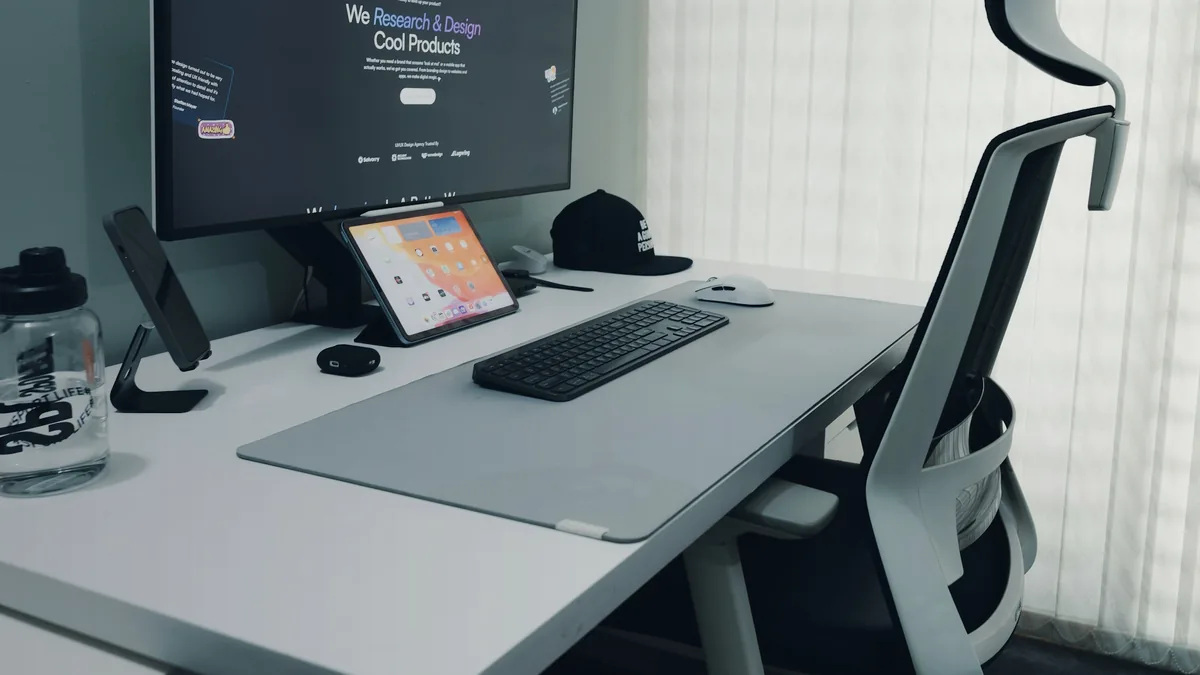
Start directly in front of the screen
OSHA recommends placing the monitor directly in front of the user and considering its position together with the keyboard, desk and chair. That reduces the need to keep the head turned for long periods.
For a dual-monitor setup, put the primary screen directly ahead if one is used much more. If both are used equally, center the pair around your normal posture.
Set a comfortable viewing distance
OSHA gives a general preferred viewing-distance range of about 20 to 40 inches, while noting that text size and individual needs matter.
Do not force yourself to sit at one exact number. Move the display until text is comfortably readable with your torso supported rather than leaning forward.
Keep the top of the screen around eye level or below
OSHA’s quick guidance places the top line of the screen at or below eye level. Laptop users often need a stand or external monitor to raise the display while keeping an external keyboard at a comfortable hand height.
If raising the screen forces the keyboard upward too, separate the two functions.
Control glare
Position the screen to reduce reflections from windows and strong lights. OSHA suggests placing the monitor perpendicular to a window where possible.
Brightness should fit the room; extreme contrast between screen and surroundings can be uncomfortable.
Make text bigger before leaning closer
Operating-system scaling and application zoom can make a large difference. If you keep leaning forward to read, increasing text size may solve the problem more cleanly than moving the whole monitor closer.
Re-check the entire workstation
Monitor placement interacts with chair support, keyboard reach and desk height. Change one element, then reassess the others.
If you have persistent pain, numbness or vision symptoms, workplace guidance is not a substitute for an appropriate professional assessment.
Use the monitor’s stand before buying accessories
If the display already has height, tilt, swivel or pivot adjustment, use those controls first.
Raise or lower the panel until you can view the main work area without repeatedly bending your neck. Tilt the screen enough to keep the display surface easy to see without creating distracting reflections.
If the included stand cannot reach a useful position, then a monitor arm, riser or VESA mount may solve a real limitation rather than adding complexity for its own sake.
Dual-monitor placement depends on how evenly you use them
Two monitors do not always belong in a perfectly symmetrical arrangement.
If one screen is primary, place that screen directly in front of you and angle the secondary display inward. This minimizes the amount of time your head remains turned.
If you genuinely divide work evenly between both screens, center the gap between them around your normal posture and keep the displays at similar height and distance.
Very wide gaps or mismatched viewing distances can turn a dual-monitor setup into constant neck movement.
Laptop plus monitor: choose a primary display
A laptop beside an external monitor often ends up much lower than the main screen.
If the external display is primary, place it directly ahead and use the laptop as a secondary screen. A laptop stand can raise the smaller display closer to the external monitor’s height, but only if you use an external keyboard and pointing device.
If you still type on the laptop keyboard, raising the laptop too high can improve screen position while making hand position worse.
Treat screen and keyboard placement as one system.
Glare is often easier to fix by moving the screen
Before increasing brightness, look at what the screen is reflecting.
A monitor facing a bright window can be difficult to use even at high brightness. Turning the desk or rotating the display so the window is more to the side can reduce reflections without forcing the screen to compete with intense light.
OSHA suggests positioning monitors perpendicular to windows where practical.
Room lighting, screen brightness and window position should work together. A brighter display is not always the best answer.
Use scaling before changing your posture
High-resolution monitors can make interface elements appear small at default settings.
If you are leaning toward the screen to read menus or text, increase operating-system scaling or application zoom before pulling the monitor much closer.
This is especially useful on 27-inch 4K displays and other high-pixel-density screens where the native pixel grid can make text very small at 100% scaling.
Comfortable text size is part of correct monitor placement.
Recheck the setup after thirty minutes of normal work
A position that feels fine for two minutes may become annoying during a real work session.
After using the setup, ask:
- Are you leaning forward?
- Is your chin raised?
- Are you turning toward one screen for long periods?
- Is the keyboard still close enough?
- Are reflections changing during the day?
- Do you keep resizing text because it is difficult to read?
Small adjustments made after real use are more useful than trying to calculate one perfect position in advance.
Quick setup sequence
- Sit in your normal working posture.
- Place the primary display directly in front of you.
- Start within OSHA’s general 20–40 inch viewing range.
- Set the top of the screen around eye level or slightly below.
- Adjust text scaling until reading does not require leaning.
- Reduce glare by changing screen/window angle.
- Recheck keyboard and mouse reach.
- Fine-tune after a normal work session.
Monitor placement is not a medical treatment. It is a practical workstation adjustment that should reduce unnecessary reaching, turning and visual strain within the limits of your desk and equipment.